
Don’t want to sit through YouTube ads but too cheap to pay for Premium? DuckDuckGo, the privacy-focused search engine and browser company, has you covered with its latest free feature added to its browser. According to the company, its browser can now block “most video ads”.
Yup, that includes those unskippable 30-second YouTube ads that run before your chosen video starts, as well as the also-super-annoying ads that interrupt your videos, sometimes multiple times per video.
Since Google killed the last vestiges of Manifest V2, upon which ad-blocking extensions like uBlock Origin (and all content blockers that depend on dynamic filtering) were reliant, you may have noticed an increase in personalised ads infecting your videos, or just about any content you saw in Chrome. Thankfully, DuckDuckGo’s feature is keeping some of those abilities alive.
“To detect and block YouTube ads, we use community-driven filter lists sourced from uBlock Origin. These lists are maintained by an active open-source community and are regularly updated to keep up with changes to how ads are served. We may also apply our own rules to improve compatibility and reduce breakage. As with most ad blockers, using our ad blocker can lead to some additional buffering times. But once your video loads, you won’t be interrupted with ads.”
Here’s how to get DuckDuckGo-ing
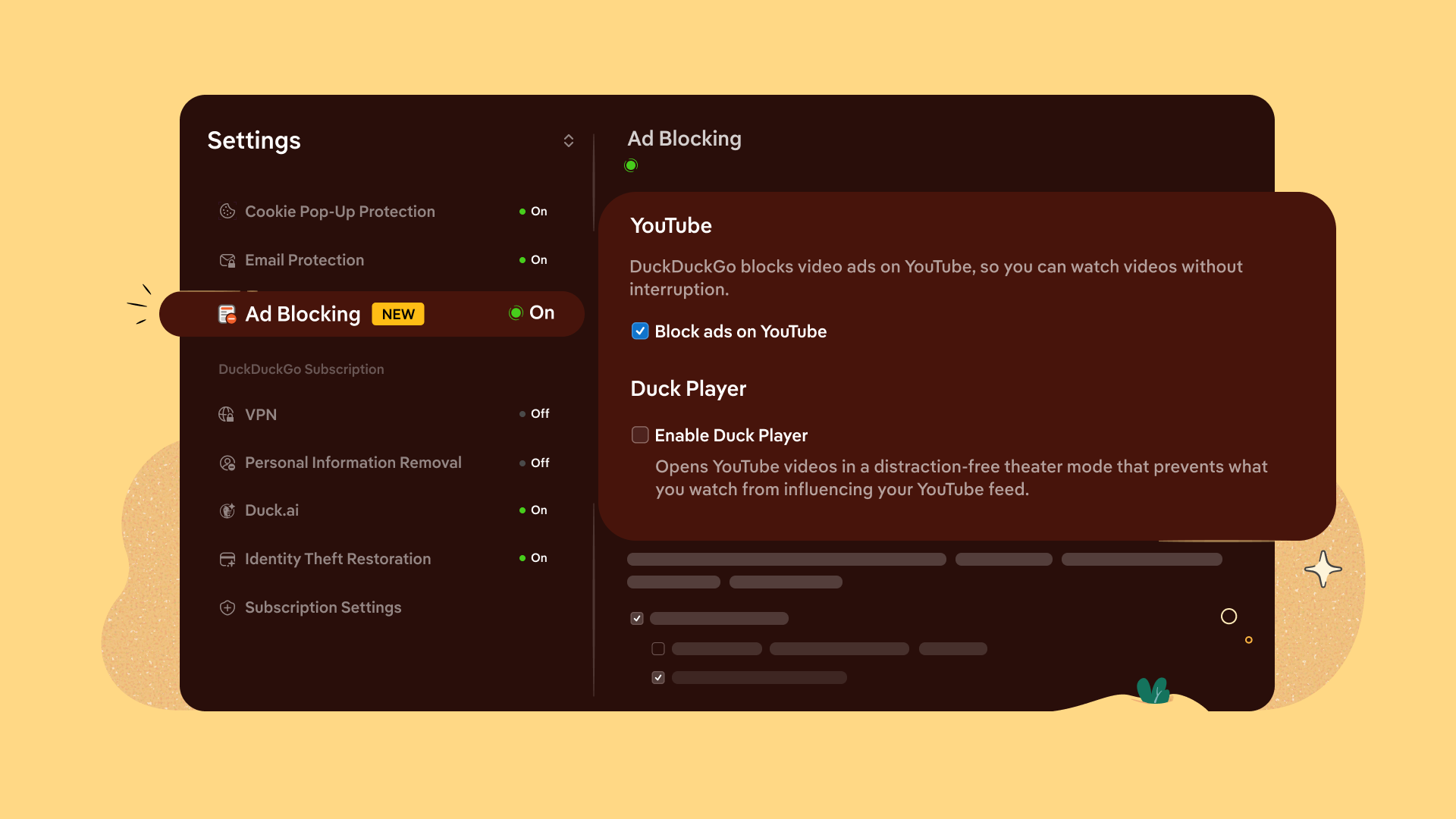
If you’re using DuckDuckGo’s browser (or planning to switch to it in light of this announcement), you’ll be happy to know there isn’t really much that’s needed from you. The new feature is enabled by default for up-to-date iOS, Windows, and Mac browsers. ‘Enabled by default’ is coming to Android too, but until then, you’ll need to head to Settings > Ad blocking to enable it manually. That’s also where you can turn it off if you want ads in your videos, for some reason.
“When you disable ad blocking mid-video, the browser will prompt you to send an error report, alerting us to any problems. This is completely optional, anonymous, and helps us make our product better…so we appreciate it!”
An important note if you’re aiming to use this on mobile: YouTube links might automatically open in the YouTube app. DuckDuckGo’s new feature won’t be able to help you in that case. You’ll need to copy the URL and open the video within the DuckDuckGo browser.