
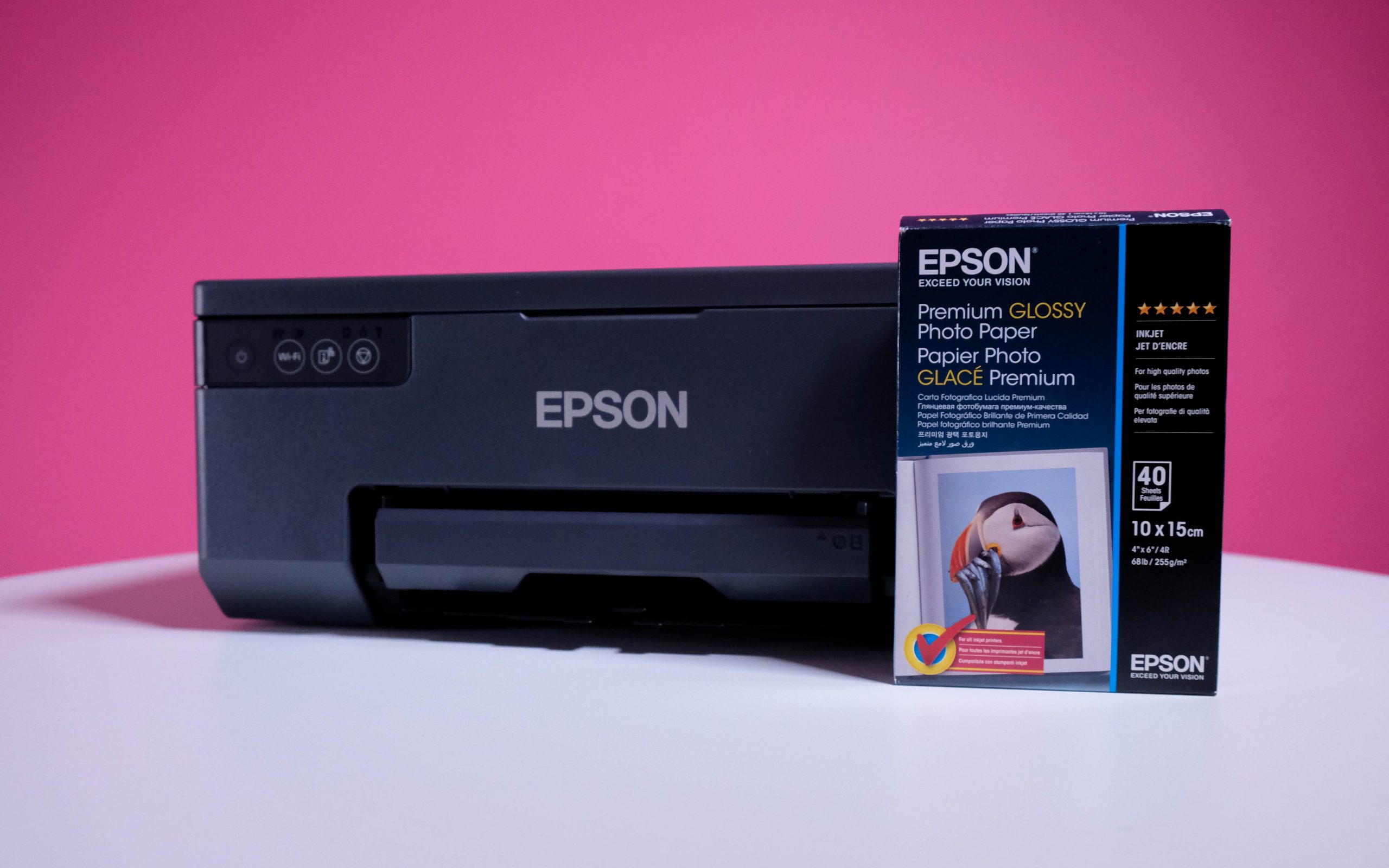
Do you need a printer? Yes - read on. No - why bother? But if you've got a burning need to print your own photos, as well as other things, without faffing around with pointless copying and scanning functions, Epson's EcoTank L8050 will give you everything you need... plus document scanning via your smartphone with the Smart Panel app. And you'll need that particular app to complete setup, so you might as well exploit the option. At eight grand, though, it'll be difficult to justify alongside a R2,500 cheapie until you've done the Ink Math.
-
Setup
-
Features
-
Versatility
-
Value
Epson’s EcoTank L8050 printer is an older unit — it’s been around for some time — but it’s still comparatively unusual, in that it’s just a printer. There’s no scan or copy function, which we’re used to seeing from Epson’s EcoTank lineup. It just accepts paper and spits out… paper with stuff on.
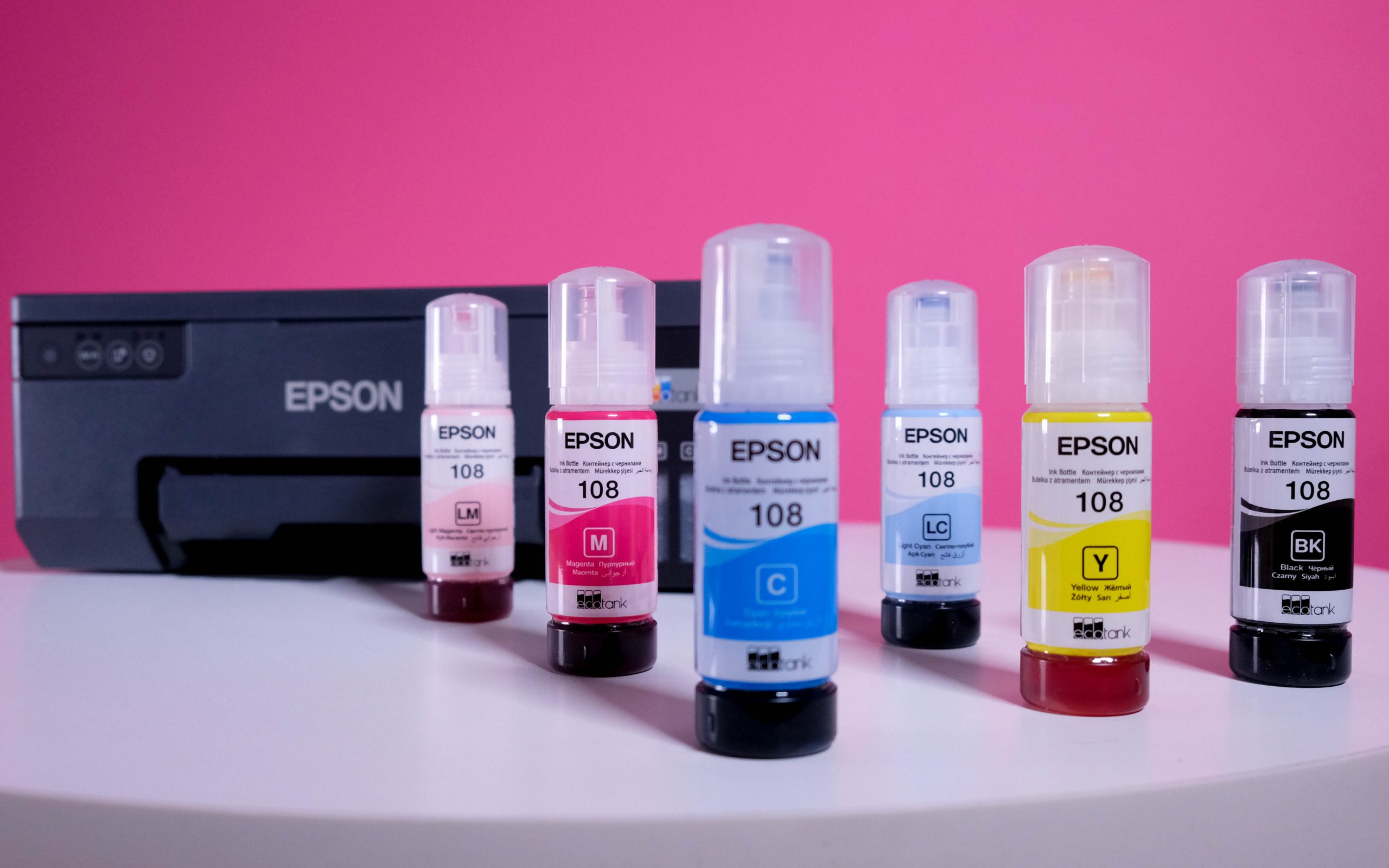
That paper varied, with the L8050 particularly rated for photo printing. That’s at least part of the reason why you’ll get six ink shades as opposed to the usual CMYK quartet we’re used to seeing in home printers. There are two extra shades — Light Cyan and Light Magenta — to help create glossy, vivid photographs. Or, we suppose, to spice up a colour print for a school project.
Black box
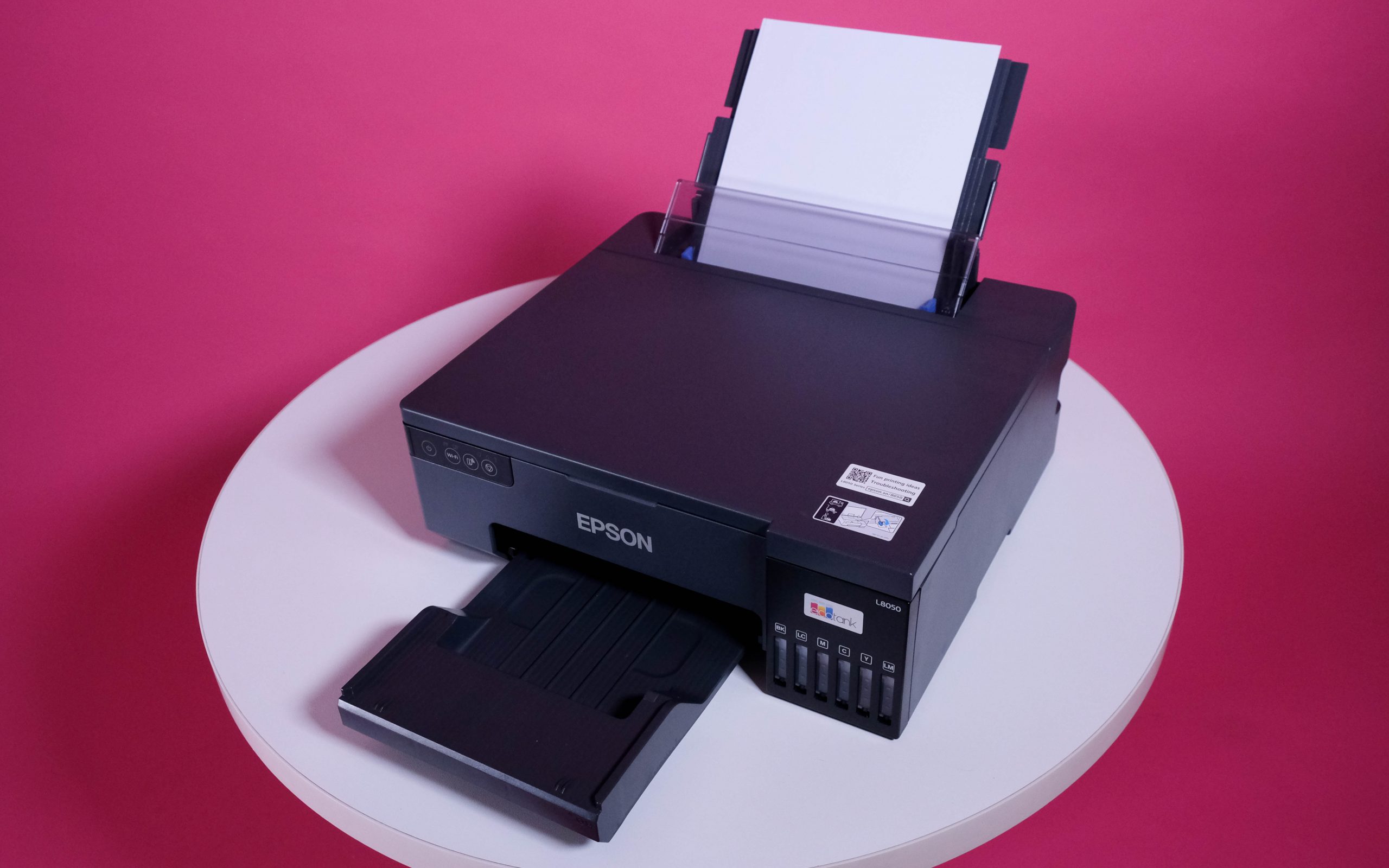
Yanking out the copy and scan functions means that Epson’s home printer is more compact and lightweight than even a small multifunction. It’s also less complicated to find space for, and far less complex to set up. It’s completely wireless, as far as we can make out — though, in all honesty, we didn’t bother to look for a printer cable port. There’s only one cable — the two-prong figure eight power cord included in the box — and then a couple of apps required for setup.
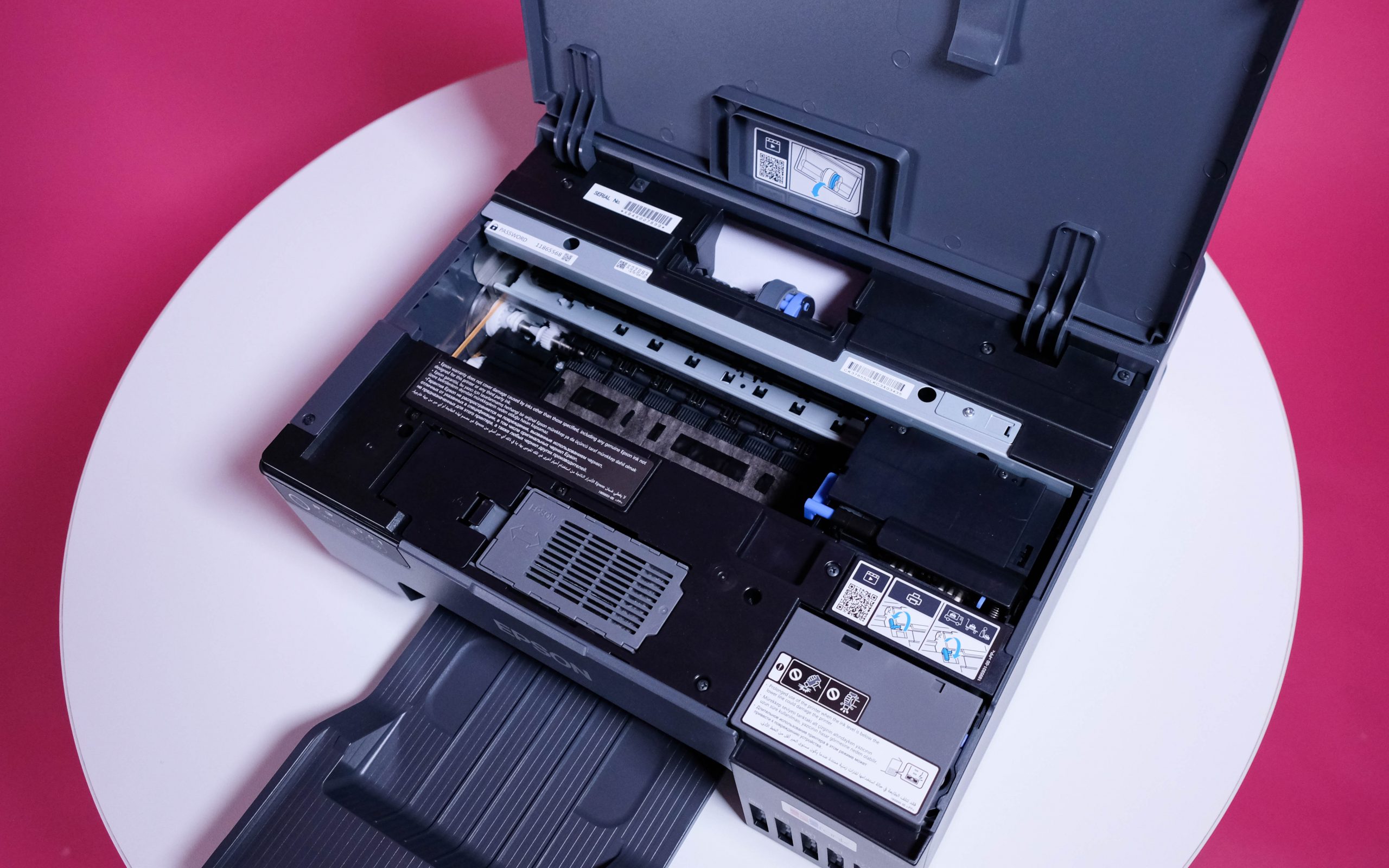
This simplifies the process to a) extract the printer and cable, b) strip off all the pale blue tape holding bits closed or in place, c) place the correct bottle over the correct nozzle in the ink reservoir, and d) connect the whole lot, now powered up, to your network using Epson’s apps.
The only moving parts you need to concern yourself with are the top (paper receiving) and bottom (paper output) trays. If you’re poking your fingers anywhere else, the Epson EcoTank L8050’s lifespan will drop remarkably. Your fingers will possibly experience a similar fate.
Which way lies Appiness?
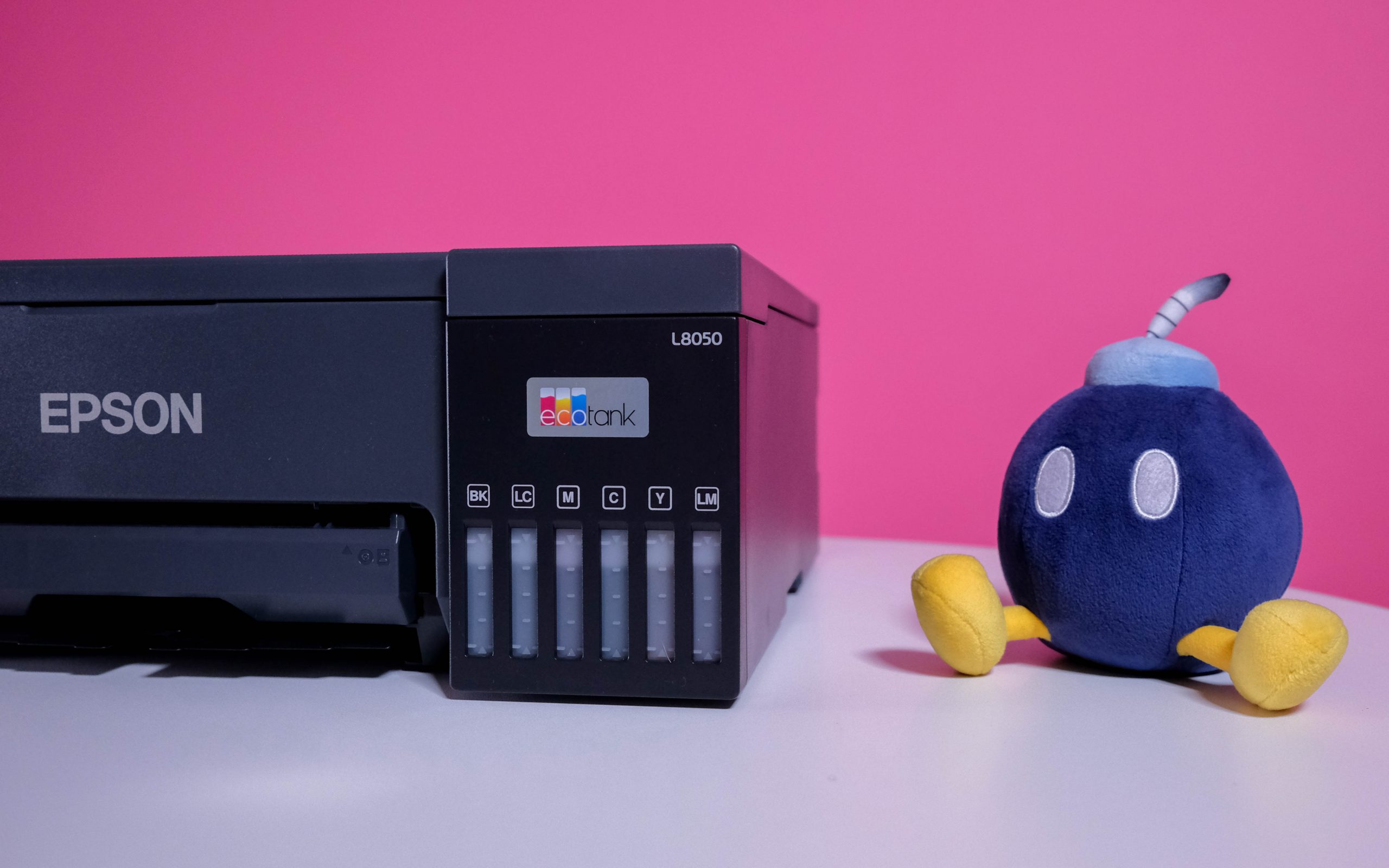
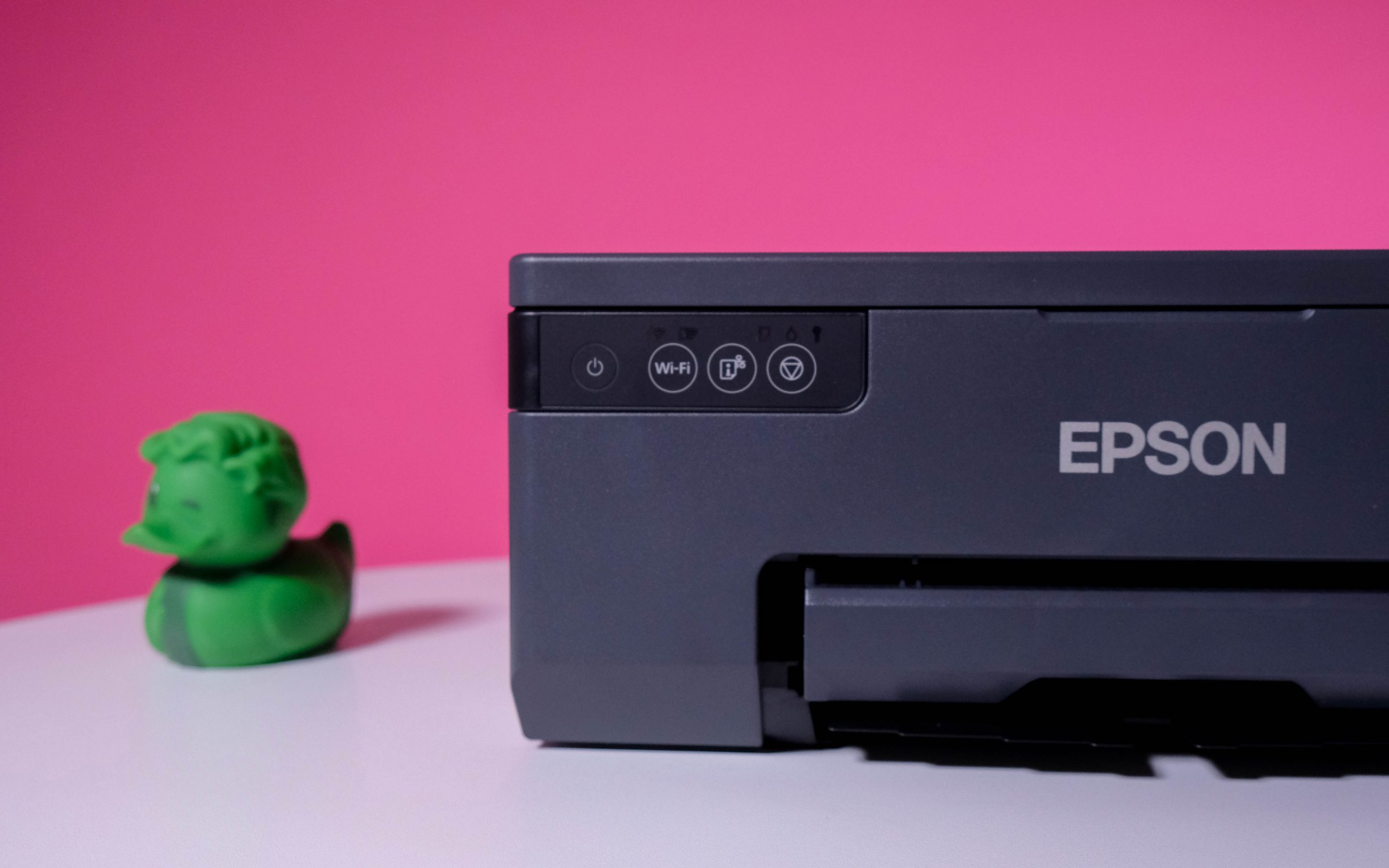
By far the largest difficulty we had with the Epson EcoTank L8050 was during the initial setup, which demands that you use one of two of the company’s apps. Either Epson’s iPrint or Smart Panel apps will communicate with this desktop peripheral, and you can (in theory) use either to connect the printer to your home network. This isn’t an optional step, either, since a lack of an LCD panel and only three physical buttons means you’ve got to resort to something to connect to a network.
Of the two apps, Smart Panel offers the better interface for completing the job. It’s… well, it’s smarter. iPrint is fine for dashing off quick prints via WiFi Direct, and if all you’re using is your phone as a data source, it’ll serve well enough. But if you actually want folks to see the printer on your network, Smart Panel is the way to go. Oh, and you’ll need a 2.4GHz network, because Epson’s printer doesn’t talk to the other kind.
Going to print
 Once you’ve cleared this hurdle — and installed printer drivers from Epson’s website if you happen to use an Apple laptop — the actual printing will more than get the job done. Our text tests were relatively speedy. Not as quick as a laserjet, where the pages arrive smoking and warm, but the L8050 will spit out neatly formatted pages with the only errors being the ones you left there in the first place.
Photographs, one of the main features Epson is punting here, are a little more variable. Most pictures came out looking as professional as you could want, but on a few occasions, we encountered signs of the print head slowing down, with visible print lines across prints. These seemed confined to specific shades on the image — a combination of yellow, green, and pale orange was the largest culprit — but other photos were as crisp as if they’d been professionally done.
Ink replacements are via Epson’s 108 bottles, which retail anywhere from R290 to R450, depending on your purchase location. We found that a price of around R365 was more typical for replacement. Scale that up to six bottles, and you can expect to pay R2,200 or so for a complete refill. Happily, the EcoTank system means you probably won’t have to do all of that at once.
Epson EcoTank L8050 verdict
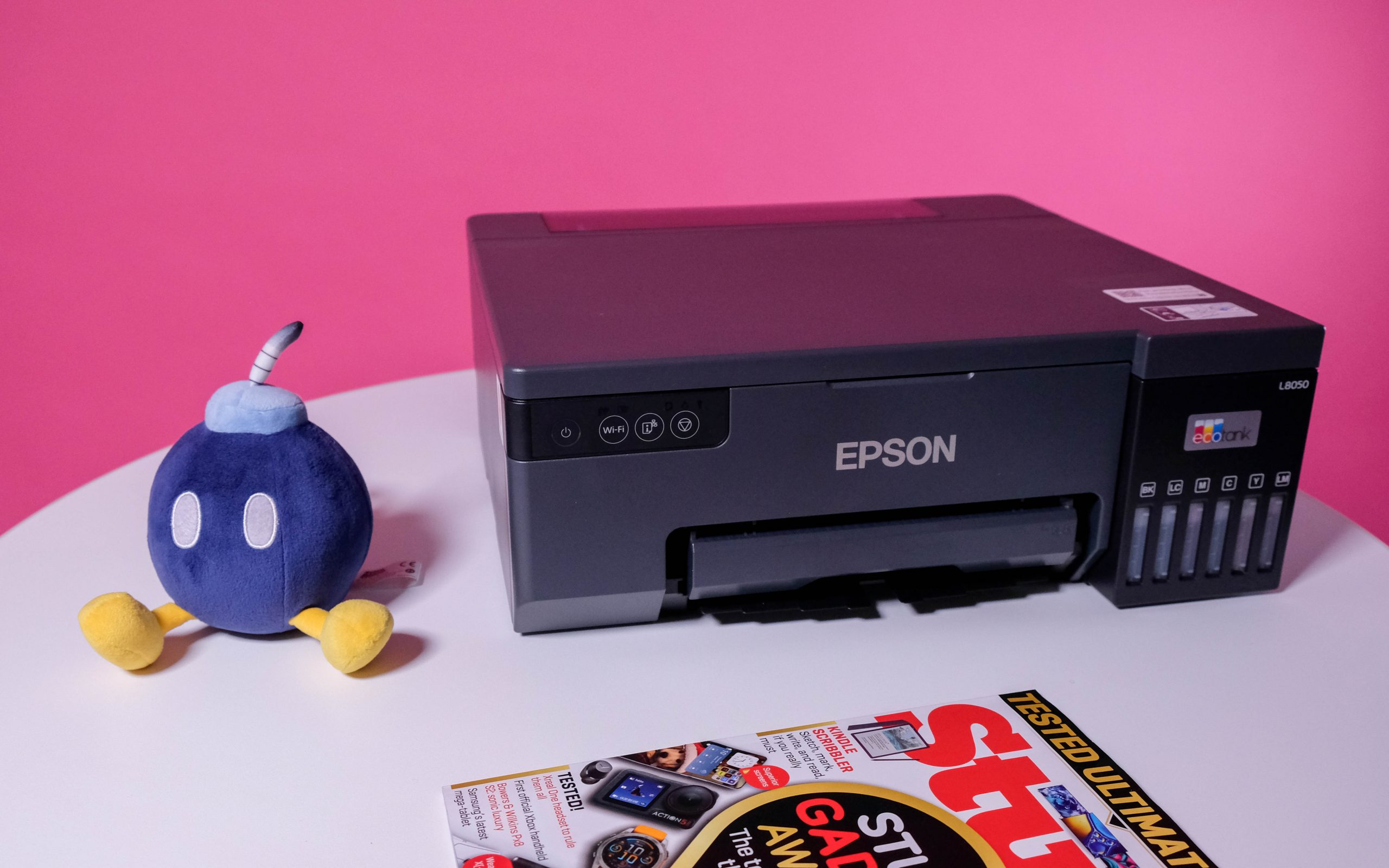 The Epson L8050 isn’t cheap, however. If you’re searching for a budget workhorse for the occasional Home Affairs or traffic department document print, you’re unlikely to be keen on the R8,000 price tag. If you’re looking to add a competent photo printer to your arsenal of home tech, though, you could do worse. You’re still on the hook for (pricey) photo paper, but it can be purchased on your own terms and not at a significant markup. Setup for the L8050 is easy enough, once you know which app and network type get the job done, and we’ve yet to see a simpler physical setup than the one Epson provides here.
Still, it’s a printer, and a purchase will always boil down to ‘do I need a printer at home?’ If you’ve got the budget and the need, this general/photo printer should be within almost everyone’s capability to set up (ask someone to help with the Mac drivers, if you must), with the included ink tank bottles containing enough to keep you going through at least a few reams before you need to head to the online retailer for more.