

As of today, we are 56 days away from Windows 10’s end-of-support date — 14 October 2025. The writing’s been on the wall for the last few years, not to mention the same fate befell previous versions of Windows in Microsoft’s predictable ten-year support lifecycle.
If you’re one of the millions still trucking along with Windows 10, it isn’t time to panic yet. You still have time to weigh up options on how you’d like to proceed. If you’re one of the few still hobbling along with anything older than Windows 10, we commend your commitment and wish you the best, because no amount of convincing will get you to switch now.
Option 1 (best): Upgrade to Windows 11
Just because Windows 10 is reaching the end of its official life doesn’t mean your PC will stop functioning when the day finally rolls around. The only certain thing is that most Windows 10 PCs will stop receiving security updates, and you won’t get any customer support for them going forward.
The best option for most folks is to upgrade their machine to Windows 11. It should be a free upgrade in most cases, provided you meet Windows 11’s requirements. Those include a 1GHz (or faster) 64-bit CPU with two or more cores, 4GB of RAM, at least 64GB of storage, and an HD display (720p) that’s larger than 9in — no biggie. The part that might trip up older PCs is the requirement that Secure Boot be enabled and a Trusted Platform Module (TPM) version 2.0 be present.
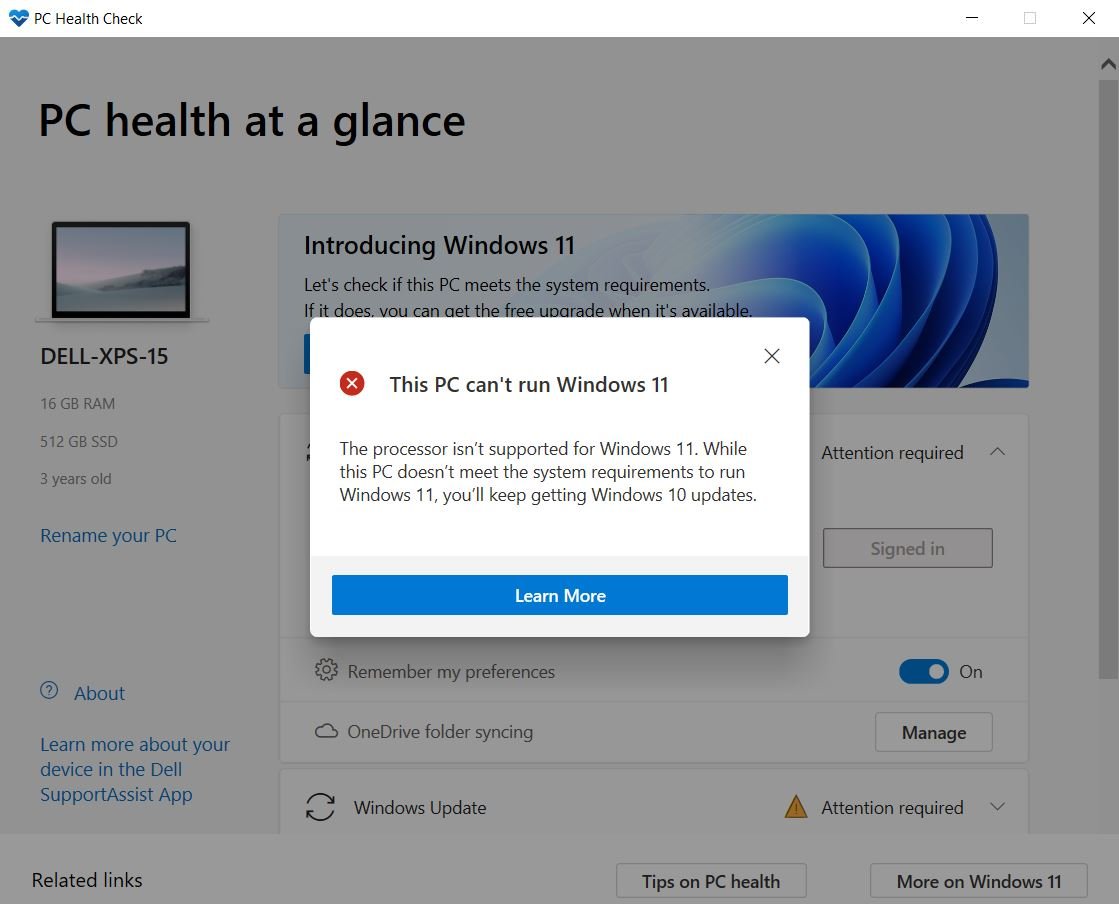
If you’d rather not hunt for your PC’s specs to compare with the list of compatible CPUs (Intel, AMD), Microsoft’s PC Health Check app will let you know if your machine is ready for the change.
There is an unofficial alternative version of that called ‘WhyNotWin11’ available on GitHub for when you run into issues, like the official app not giving you enough info on why you can’t update yet.
Option 2 (expensive): Buy a new PC
If your system is too old or doesn’t meet the TPM 2.0 and Secure Boot requirements, the easiest option (but also the most expensive, considering the others are free) is to spring for a new machine. Advanced users might still be able to find workarounds for installing Windows 11 on unsupported PCs, but that comes with its own set of issues and isn’t recommended.
Having to buy a new laptop just to get Windows 11 might not seem worth it if Windows 10 still meets all your needs, and the thought of having to ‘learn’ a new operating system fills you with dread. The good news is Windows 11 isn’t a drastic departure from Windows 10, and there is a plethora of help online.
Option 3 (lazy): Extend Windows 10 updates for a year
If your current hardware means updating is a no-go, you do have the option to prolong your system’s support through the Extended Security Updates (ESU) program for Windows 10. The easiest way to do that if you aren’t a company is to enable Windows Backup on your personal computer to sync your folders and settings to the cloud. Just make sure you’ve got enough available storage in your OneDrive.
You may also have to look out for the ESU enrollment wizard, either in your Windows notifications or in Settings, to make sure MS knows you’re hanging onto Windows 10 until 13 October 2026. This will give you some breathing room if you’ve been asleep for the past four years, enough time to plan your upgrade path or save up for a new machine.
Option 4 (risky): Do nothing
 As we said earlier, your Windows 10 PC will continue to function up to and beyond 14 October, and you may not even notice a difference at first. In fact, you’ll probably enjoy not having to wait around for updates to download and install the moment you’re in a hurry… until something bad happens. By then, it’s usually too late.
All it takes is for one ambitious hacker (or group) to find a new security vulnerability, and your once-secure PC is suddenly mining cryptocurrency and making someone else rich. That becomes more likely every day beyond 14 October. Even Option 3 is better than this.
Option 5 (adventurous): Try something new
If none of the above options tickle your fancy, maybe it’s time to try something new. Apple’s computers might suit you better, but don’t make the mistake of thinking you won’t run into the same issue. Apple releases new versions of macOS every year and provides security updates to the previous version for another two years, on average. Depending on what you buy, your new device might last up to five years before Apple stops supporting it entirely and you’re back to square one.
And then, there’s Linux. If your PC hardware no longer meets Microsoft’s requirements, installing Linux will give it new life. But even as we type “install Linux”, we can hear Linux fans cringe. It can be that simple, but oftentimes it’s not. Just picking which Linux ‘distro’ can be challenging. Thankfully, you aren’t completely left to the wolves if you want to go this route. Here’s a good place to start. Just make sure you know what you’re getting yourself into. You have been warned.




1 Comment
Until a hardware problem, I’d been using a Windows 7 laptop. Microsoft Security Essentials kept it secure and software updates – not W7 obs – were/are available. It worked.
Now I’m looking at MacBook though. An Apple salesman told me ten 10 years support for M4 (not five per your article). I’m keeping the Windows 7 laptop for historic files and apps.